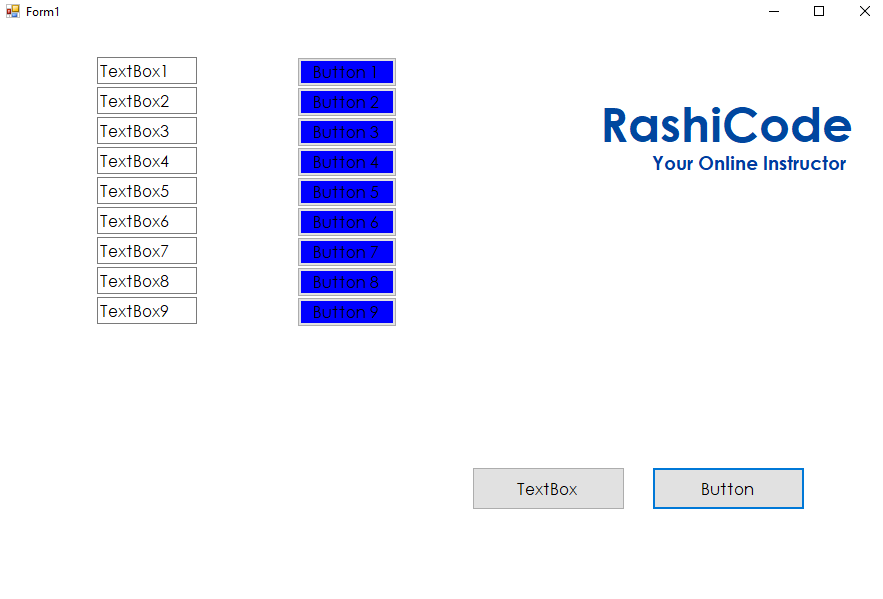
how to Create Dynamic Control in Runtime c# winform app
How To Create Dynamic Controls in RunTime in C# winform app
Hello friend’s this is Rashid Hussain come with another video tutorial. In this tutorial I’ll show you how to Create dynamic control in run time in c# windows form application
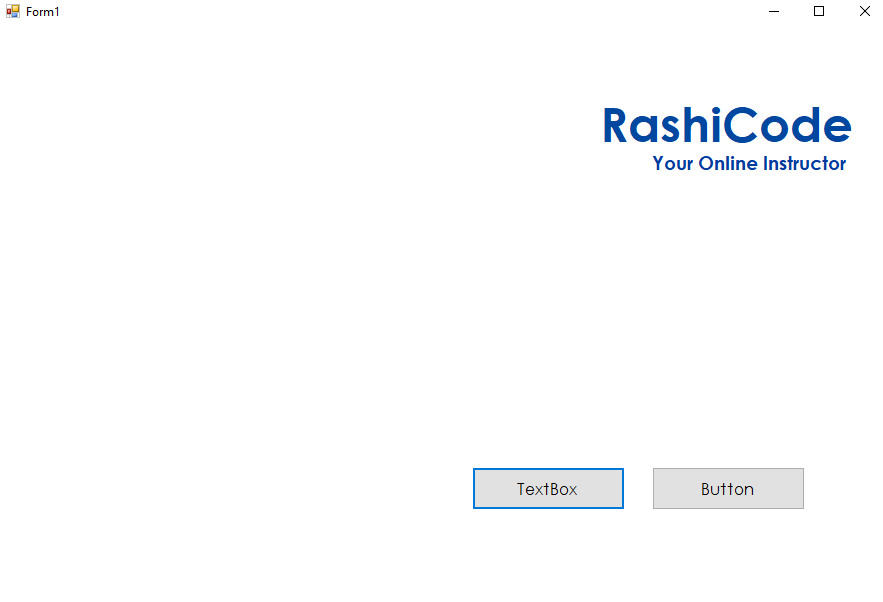
Create new windows Form application in visual studio. follow the steps
drag Two button from toolbox.
Text Box Function
private System.Windows.Forms.TextBox addtextBox()
{
TextBox txt = new TextBox();
this.Controls.Add(txt);
txt.Top = textbox * 30;
txt.Left = 100;
txt.Text = "TextBox" + this.textbox.ToString();
textbox = textbox + 1;
return txt;
}
Button Function
private System.Windows.Forms.Button addbutton()
        {
            Button btn = new Button();
            this.Controls.Add(btn);
            btn.Top = button * 30;
            btn.Left = 300;
            btn.Width = 100;
            btn.Height= 30;
            btn.BackColor = Color.Blue;
            btn.Text = "Button " + this.button.ToString();
            button = button + 1;
            return btn;
        }
Now Call the above Function in Buttons clicks Events
Complete source Code
using System;
using System.Collections.Generic;
using System.ComponentModel;
using System.Data;
using System.Drawing;
using System.Linq;
using System.Text;
using System.Threading.Tasks;
using System.Windows.Forms;

namespace Dynamic_Controls
{
public partial class Form1 : Form
{
int button = 1;
int textbox = 1;
public Form1()
{
InitializeComponent();
}

private void Form1_Load(object sender, EventArgs e)
{

}

private void button1_Click(object sender, EventArgs e)
{
addtextBox();
}

private void button2_Click(object sender, EventArgs e)
{
addbutton();
}

private System.Windows.Forms.TextBox addtextBox()
{
TextBox txt = new TextBox();
this.Controls.Add(txt);
txt.Top = textbox * 30;
txt.Left = 100;
txt.Text = "TextBox" + this.textbox.ToString();
textbox = textbox + 1;
return txt;
}

private System.Windows.Forms.Button addbutton()
{
Button btn = new Button();
this.Controls.Add(btn);
btn.Top = button * 30;
btn.Left = 300;
btn.Width = 100;
btn.Height= 30;
btn.BackColor = Color.Blue;
btn.Text = "Button " + this.button.ToString();
button = button + 1;
return btn;
}
}
}
Video tutorial
Thank you for reading this article. Please don’t forget to subscribe our official YouTube Channel RashiCode
https://www.effectivecpmnetwork.com/de83bxvs60?key=74281c6f4892824233ec299469f55027